DaisyDisk vs Diskly: which one fits you?
DaisyDisk is the best-known disk space analyzer for the Mac, and Diskly is newer. Both show what fills your disk, both are a one-time purchase, and both delete for good to free space at once. They differ in how much they explain. I make Diskly, so I’ve kept every DaisyDisk claim to what DaisyDisk’s own site says, with links.
 Aditya Pratap Singh, who makes Diskly
· 4 min read

In short
Choose DaisyDisk if you want a fast, polished map of any disk, including cloud and network disks, and you’re happy to judge every file yourself. Choose Diskly if you want each folder explained in plain words, System Data split into named places, and suggestions that come with the reason they’re safe.
What they have in common
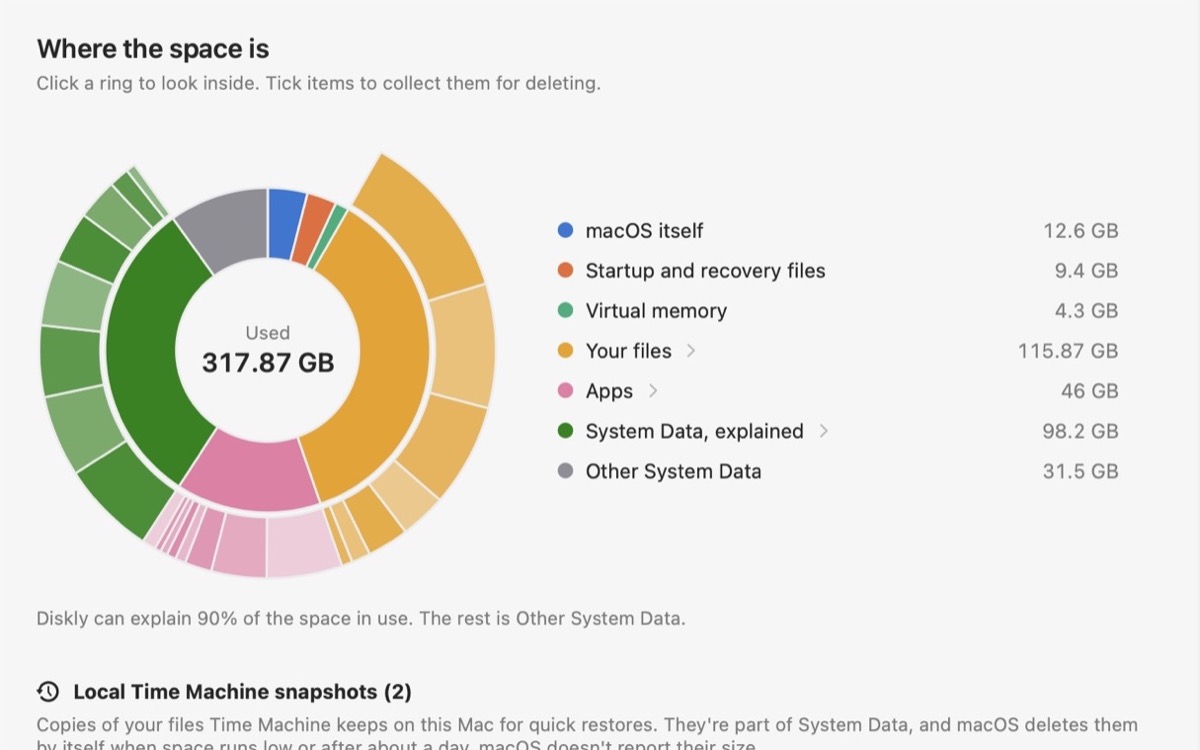
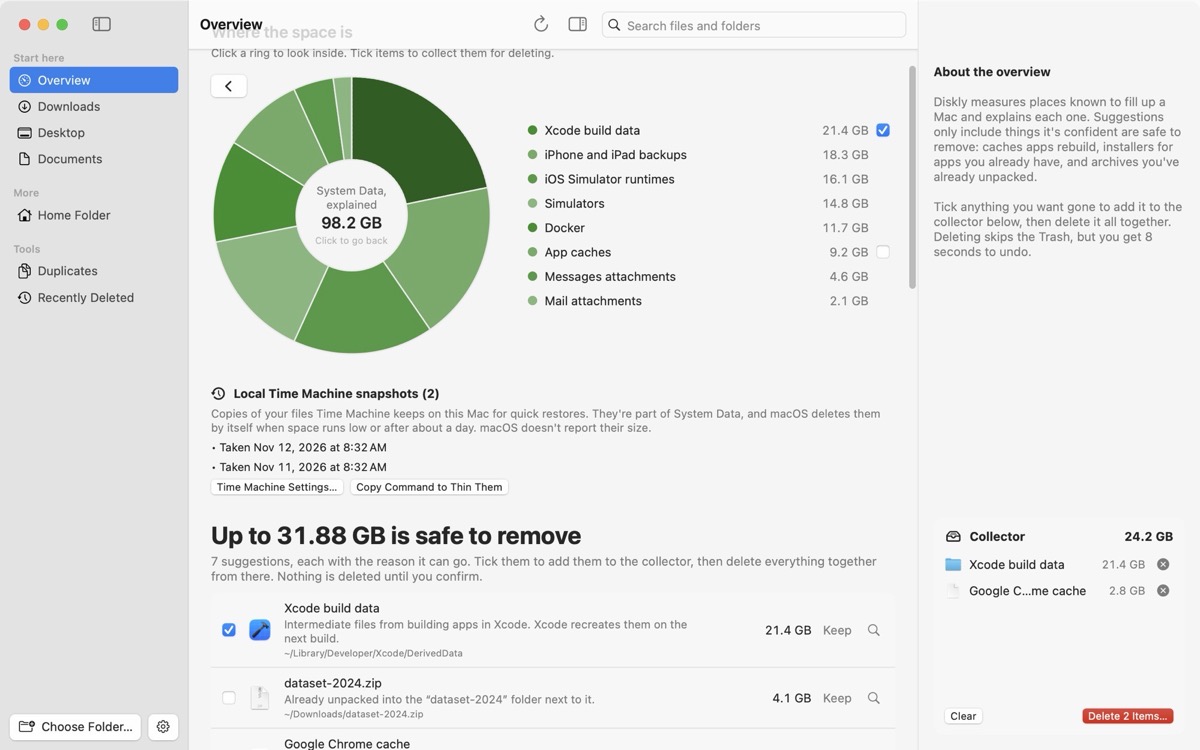
- A visual map. DaisyDisk draws a sunburst you click into. Diskly has rings for the whole Mac and a map for any folder.
- A one-time price, not a subscription. DaisyDisk says its license “is a one-time purchase, and not a subscription” (daisydiskapp.com). Diskly Pro is a one-time purchase too.
- System files are protected. DaisyDisk has “safety stoppers” that stop you deleting system components. Diskly never offers macOS files, Library settings or app data, and lists exactly what it will never touch on its Safety page.
- Deleting frees the space at once. Neither uses the Trash. DaisyDisk “permanently removes files and folders instead of moving them to the system Trash” and gives you 5 seconds to cancel (DaisyDisk guide). Diskly waits 8 seconds by default, adjustable from 5 to 30, with an Undo button and Command-Z.
Where they differ
DaisyDisk details are from its home page, specs and guide, as of November 2026.
Which to choose
- Choose DaisyDisk if you need to scan cloud or network disks, you’re on an Intel Mac or an older macOS, you want to manage purgeable space and snapshots directly, or you already know what your files are and just want the fastest map.
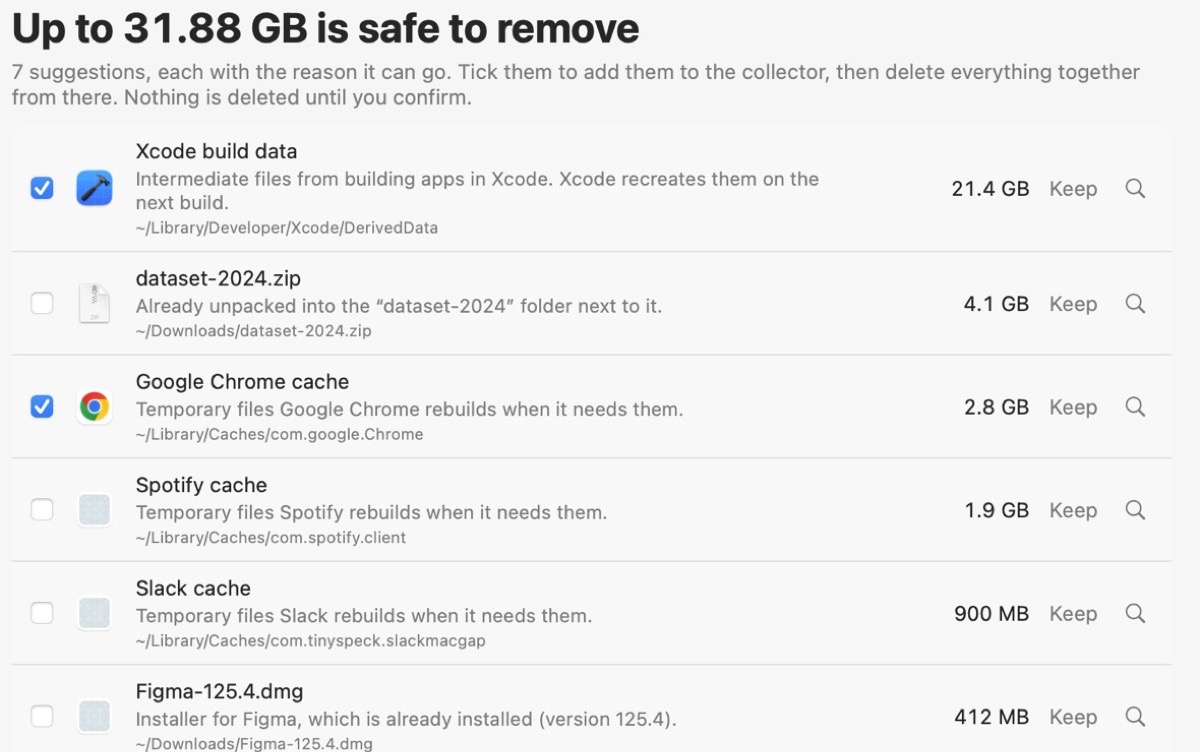
- Choose Diskly if the folder names in a disk map don’t mean much to you, if System Data is the part that keeps growing, or if you’re a developer whose disk is full of Xcode, simulator and Docker data. It tells you what each thing is, suggests only what rebuilds by itself, and keeps Undo behind every delete.
And CleanMyMac?
CleanMyMac is a different kind of app: a cleaner rather than a disk analyzer. Its site recommends starting with a Smart Care scan that deals with “junk pile-up or malware threats in a click”, and its price is shown as “starting at $3.33/month” (cleanmymac.com). If you want one button and ongoing maintenance, that’s its job. If you want to see what’s on your disk and decide yourself, a disk analyzer like DaisyDisk or Diskly fits better, for a one-time price.
Questions people ask
Is Diskly a DaisyDisk alternative?
Yes. Both are disk space analyzers with a one-time price. Diskly adds plain-language explanations of each folder, a breakdown of System Data into named places, and suggestions with reasons; DaisyDisk covers cloud and network disks and older Macs.
Does DaisyDisk move files to the Trash?
No. DaisyDisk’s guide says it permanently removes files instead of moving them to the Trash, with 5 seconds to cancel. Diskly also deletes for good, after an Undo window of 8 seconds by default.
Which is cheaper, DaisyDisk or Diskly?
DaisyDisk is $9.99 once for up to 5 Macs. Diskly Pro is $9 once until November 30, then $14, for 2 Macs, and looking at everything in Diskly is free.
Keep reading
All guides →-
What is System Data on a Mac?
What fills that gray bar in Storage settings, what’s safe to remove, and what to leave alone.
-
Mac storage full, but you can’t find what’s using it?
Your files don’t add up to what’s used. The places the space usually hides, checked in order.
-
Is it safe to delete Xcode DerivedData?
Yes, and here’s what you lose, how to clear it, and the other Xcode folders worth checking.


