Mac storage full, but nothing big in sight?
Your Mac warns that the disk is almost full, yet Documents, Downloads and Desktop come nowhere near it. The missing space is almost always in places Finder doesn’t show. Here they are, in the order worth checking.
 Aditya Pratap Singh, who makes Diskly
· 3 min read

In short
Finder only shows your visible files. The rest usually sits in your hidden Library folder, in System Data (caches, iPhone backups, developer tools, virtual machines), in local Time Machine snapshots, or in the Trash. Check those first, and remember that Finder’s “available” figure counts purgeable space macOS can free by itself.
Why your files don’t add up
Finder adds up what it shows you, and it hides a lot by default: the ~/Library folder, everything starting with a dot, other people’s accounts on the same Mac, and system folders. Storage settings groups what’s left into one bar called System Data, which you can’t open.
So the gap between “my files” and “disk used” is usually one or two large things in those hidden places, not hundreds of small ones.
Check these places, in this order
- The Trash. Files you delete stay on the disk until you empty it. Control-click the Trash in the Dock and choose Empty Trash.
- Storage settings’ suggestions. System Settings › General › Storage lists recommendations, and the ⓘ button beside Documents shows large files and old downloads.
- iPhone and iPad backups. With the device connected, select it in Finder’s sidebar and click Manage Backups, or look in
~/Library/Application Support/MobileSync/Backup. Each backup can be tens of gigabytes. - Developer tools and virtual machines. Xcode, iOS simulators, Docker and VM apps such as Parallels or UTM keep disks that grow to tens of gigabytes. Docker Desktop’s lives in
~/Library/Containers/com.docker.docker. - Messages and Mail attachments. Every photo and video you’ve been sent is kept in
~/Library/Messages/Attachmentsand Mail’s folders unless you set Messages to delete old conversations. - Local Time Machine snapshots. macOS frees them by itself as space runs low, so they rarely cause a real shortage, but they do make the numbers look odd.
Measure it yourself in Terminal
This lists the biggest folders in your home folder and in Library, smallest first, so the largest end up at the bottom:
du -sh ~/* ~/Library/* 2>/dev/null | sort -h | tail -20Some Library folders are protected. To measure them too, give Terminal Full Disk Access in System Settings › Privacy & Security.
Why Finder and Storage settings disagree
Finder’s “available” figure includes purgeable space: things macOS can remove by itself when it needs room, such as iCloud files that can be downloaded again, some caches and local snapshots. Storage settings may count the same space as used. Both are right; they’re answering different questions.
If an app refuses to install because there’s “not enough space” while Finder shows plenty available, it’s usually because purgeable space hasn’t been freed yet. Restarting, or emptying the Trash, often lets macOS catch up.
Seeing it all at once
Diskly measures your folders and the hidden places at the same time, names each one, and shows which of them rebuild by themselves. Its suggestions come with the reason each one can go, so you’re not deciding from a folder name.

Questions people ask
Why is my Mac storage full when I don’t have many files?
Usually because of things Finder hides: app caches and data in the Library folder, iPhone backups, developer tools, virtual machine disks, Messages attachments and local Time Machine snapshots, plus anything still in the Trash.
What is purgeable space on a Mac?
Space used by things macOS can remove by itself when it needs room, such as iCloud files that can be downloaded again, some caches and local snapshots. Finder counts it as available.
How do I see hidden files using space on a Mac?
In Finder, press Shift-Command-Period to show hidden files, or use Go › Go to Folder with ~/Library. In Terminal, du -sh ~/Library/* | sort -h lists its folders by size.
Keep reading
All guides →-
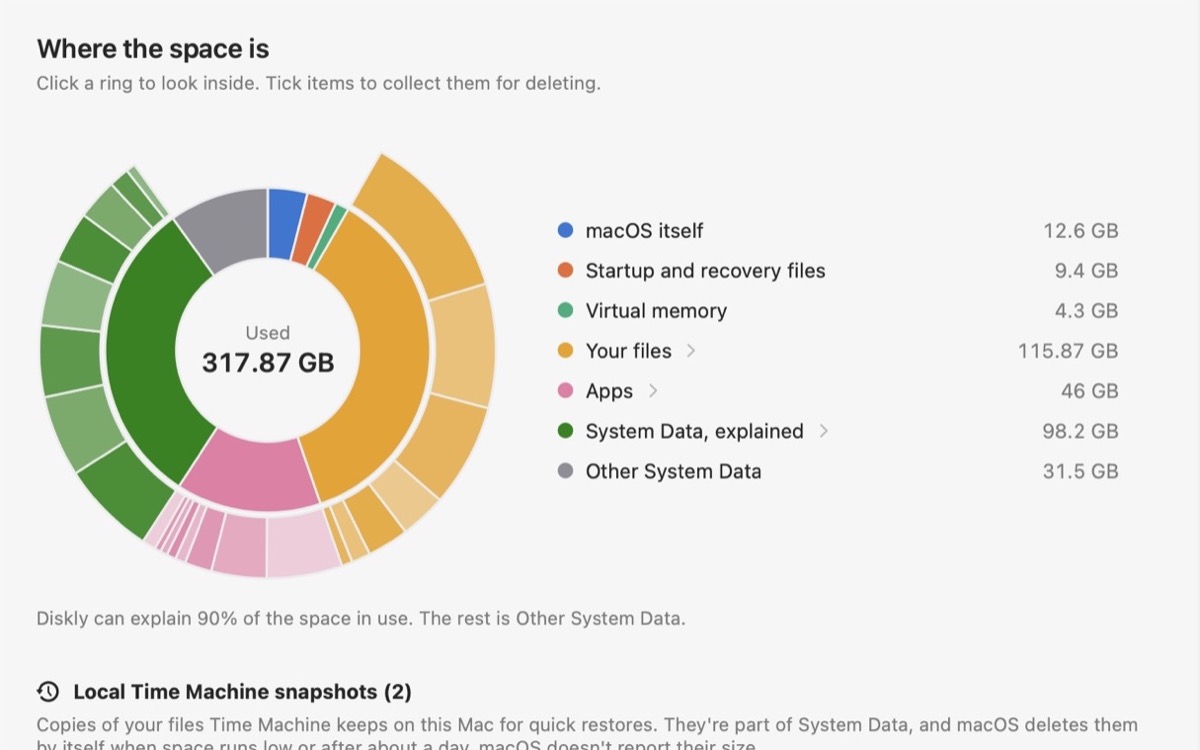
What is System Data on a Mac?
What fills that gray bar in Storage settings, what’s safe to remove, and what to leave alone.
-
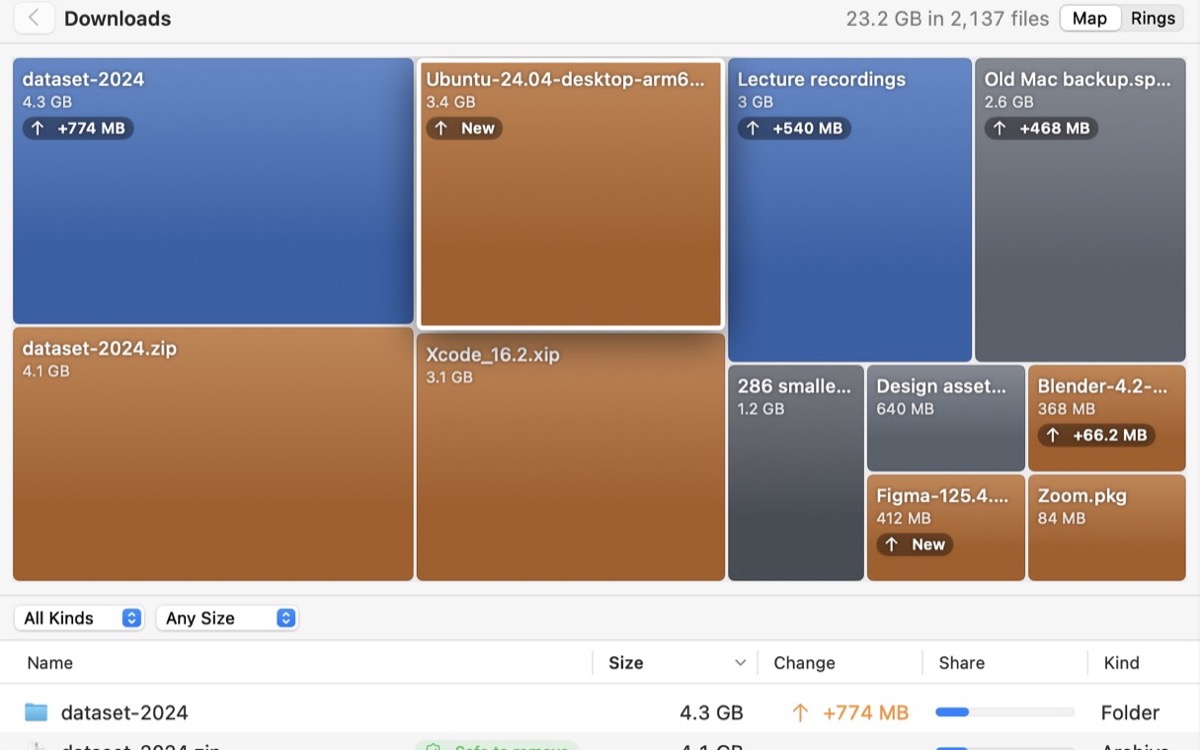
How to find large files on a Mac
Storage settings, a Finder search by size, or one Terminal command. And what the big ones usually are.
-
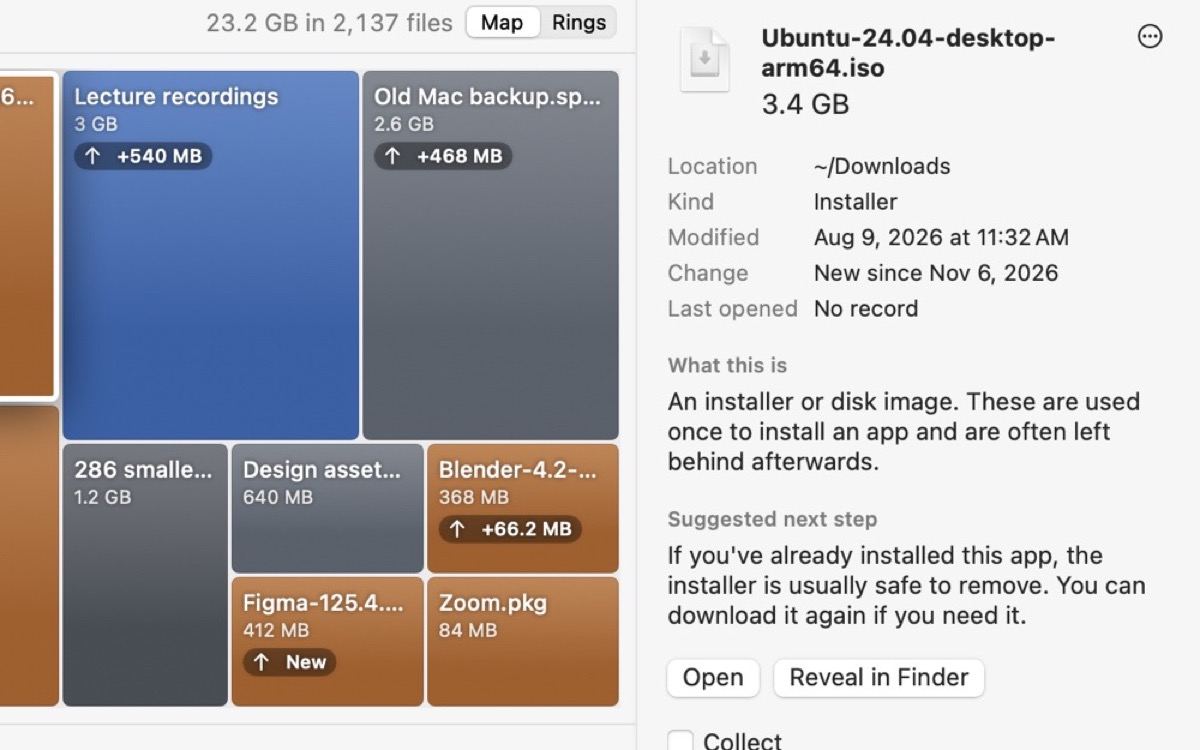
Can I delete .dmg files after installing?
When an installer can go, when to keep it, and how to find the old ones in Downloads.


