What is System Data on a Mac?
Open System Settings › General › Storage and you’ll often see a large gray bar called System Data, sometimes 50 or 100 GB, with no way to open it. Here’s what is usually inside, what’s safe to remove, and what to leave alone.
 Aditya Pratap Singh, who makes Diskly
· Updated · 4 min read

In short
System Data is everything macOS doesn’t file under Applications, Documents, Photos, Mail and its other named categories: app caches, logs, developer tools, iPhone and iPad backups, virtual machine disks, local Time Machine snapshots and the data apps keep in your Library folder. The parts that rebuild by themselves are safe to remove. The rest is in use.
What usually fills it
- App caches in
~/Library/Caches. Temporary files apps keep so they start and run faster. Browsers, Spotify, Slack and design tools can each keep several gigabytes. Apps rebuild them when needed. - Developer files. Xcode build data (DerivedData), device support files, iOS Simulator runtimes and simulated devices, Docker’s virtual disk, and package caches such as npm’s. On a developer’s Mac these are often the biggest part.
- iPhone and iPad backups in
~/Library/Application Support/MobileSync/Backup. A full backup can be as large as the device’s data, and old ones for devices you no longer own often stay behind. - Local Time Machine snapshots. If you use Time Machine, macOS keeps snapshots on the startup disk for quick restores. They count as System Data, and macOS removes them by itself when space runs low or after about a day.
- Logs in
~/Library/Logs. Usually small, but some apps let them grow for years. - App data in Application Support, Containers and Group Containers: settings, databases and downloaded content apps keep for themselves. Most of this is in use.

What’s safe to remove
The safe things are the ones that rebuild by themselves:
- One app’s cache folder in
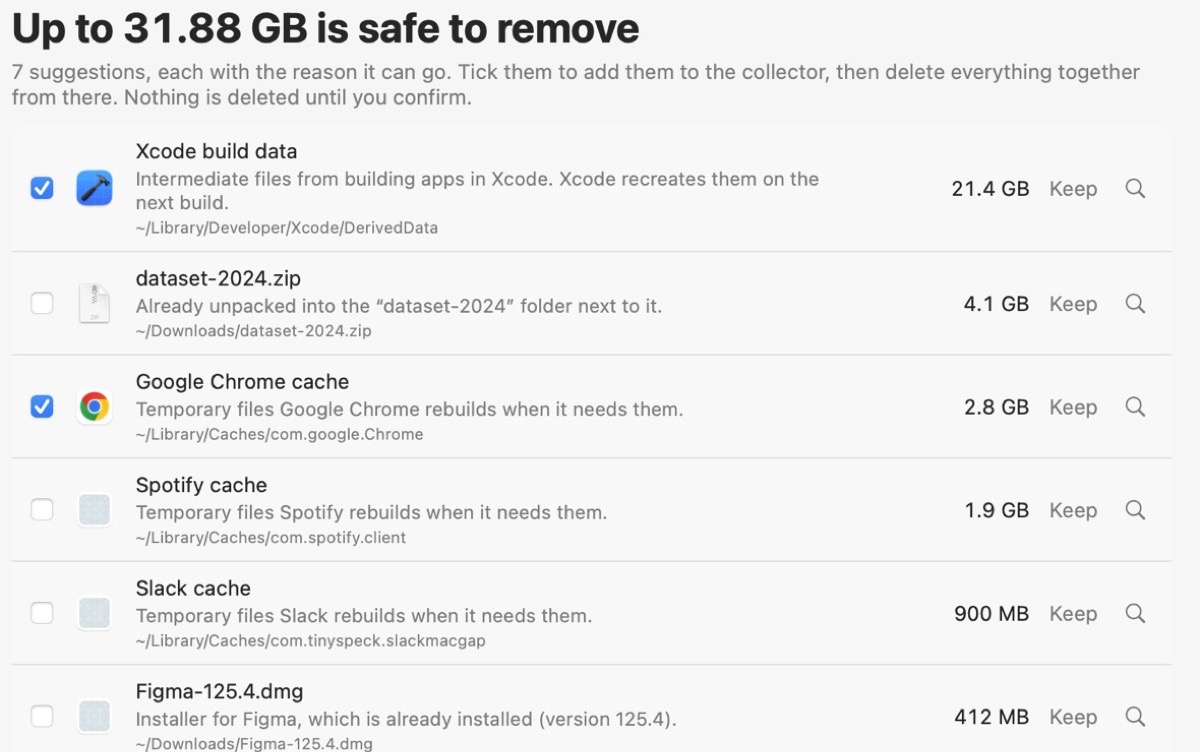
~/Library/Caches, while that app is closed. The app recreates what it needs, so it may start a little slower the first time. - Xcode build data and iOS DeviceSupport. Xcode recreates both. See Is it safe to delete Xcode DerivedData?
- Package caches such as npm’s
~/.npm/_cacache. They’re downloaded again when a project needs them. - iPhone software updates downloaded to
~/Library/iTunes. They’re downloaded again if needed. - Installers you’ve already used. Disk images and packages in Downloads for apps that are now installed. See Can I delete .dmg files after installing?
What to leave alone
- Anything in
/System, and macOS’s own caches. macOS protects most of it anyway, and removing what it doesn’t protect can break updates. - Application Support, Containers and Group Containers as a whole. They hold app settings and data, not caches. Remove an app’s folder only when you uninstall that app.
- iPhone backups you haven’t checked. Delete old ones from Finder: select your device, then Manage Backups, so you see which device and date each one is.
Time Machine snapshots
macOS manages local snapshots itself and removes them as space is needed, so they rarely need any action. To see them, or to remove one now:
tmutil listlocalsnapshots /tmutil deletelocalsnapshots 2026-11-12-083200Use a date from the list above. Deleting one only removes that quick-restore point, not your Time Machine backups.

How to see what’s inside yours
In Finder, choose Go › Go to Folder (Shift-Command-G), enter ~/Library, then use File › Get Info on folders to see their size. It works, but it’s slow, and Finder won’t tell you what a folder is or whether it’s safe.
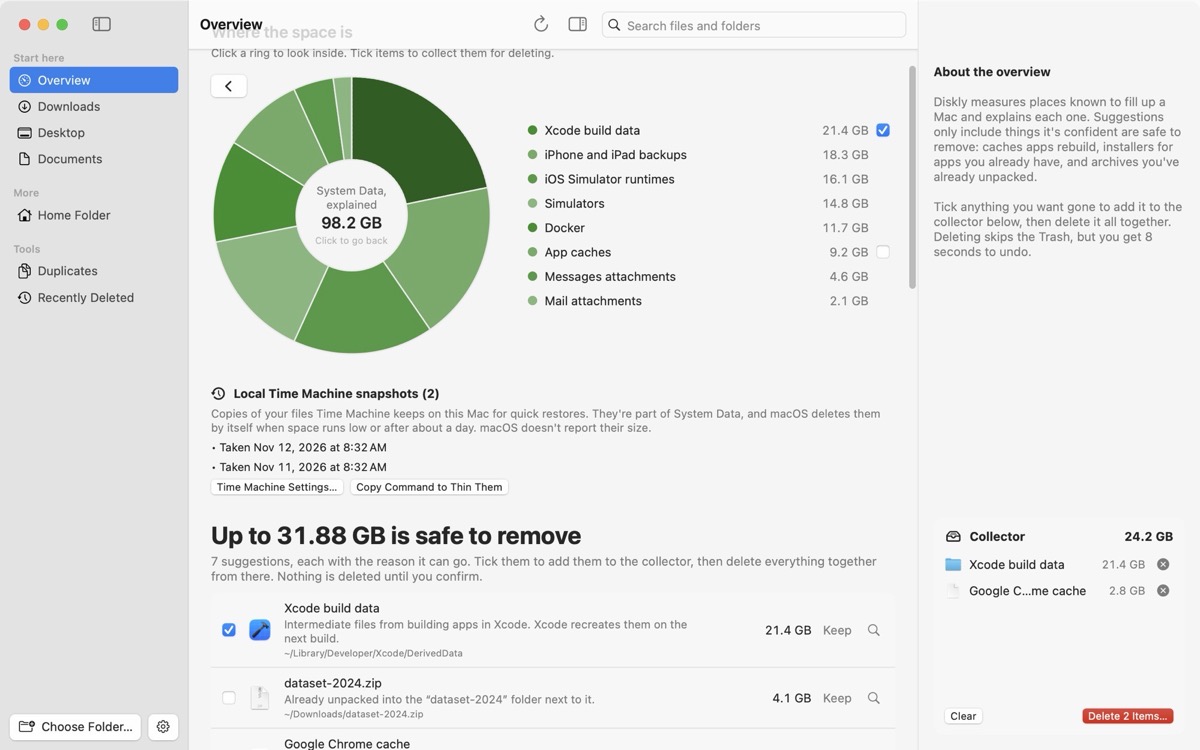
Diskly measures 36 known places that fill System Data, names each one, explains what it is and what rebuilds it, and suggests only the rebuildable ones. What it can’t place is shown as Other System Data instead of being guessed at.
Questions people ask
What is System Data on a Mac?
macOS’s catch-all for files that aren’t in its named categories: app caches, logs, developer files, iPhone and iPad backups, local Time Machine snapshots, virtual machine disks and app data in your Library folder.
Is it safe to delete System Data?
Not as a whole. Parts that rebuild by themselves are safe, such as one app’s cache folder while the app is closed, Xcode DerivedData and package caches. App data, iPhone backups you haven’t checked and anything in /System should be left alone.
Why is System Data so big on my Mac?
Usually because of app caches, developer tools such as Xcode and Docker, old iPhone backups, or local Time Machine snapshots. Which one depends on how you use your Mac.
Keep reading
All guides →-
Mac storage full, but you can’t find what’s using it?
Your files don’t add up to what’s used. The places the space usually hides, checked in order.
-
How to find large files on a Mac
Storage settings, a Finder search by size, or one Terminal command. And what the big ones usually are.
-
Is it safe to delete Xcode DerivedData?
Yes, and here’s what you lose, how to clear it, and the other Xcode folders worth checking.


