How to find large files on a Mac
A few large files often take more space than thousands of small ones. Here are three ways to find them with what’s already on your Mac, and how to tell which are safe to remove.
 Aditya Pratap Singh, who makes Diskly
· 3 min read

In short
Open System Settings › General › Storage and click ⓘ beside Documents for a Large Files list. Or press Command-F in Finder, add a File Size criterion and search for files bigger than 1 GB. In Terminal, find ~ -type f -size +1G lists them all.
1. Storage settings
- Open System Settings › General › Storage.
- Click the ⓘ button beside Documents.
- Choose Large Files. Select a file to delete it, or Control-click it to show it in Finder.
It’s quick, but it only covers documents in your home folder, and it doesn’t say what a file is.
2. A Finder search by size
- Open a Finder window and press Command-F.
- Choose This Mac next to “Search”.
- Click the first menu (it says Kind) and choose Other…, then tick File Size and click OK.
- Set it to is greater than, type 1, and choose GB.
- Switch to list view and sort by Size. Click Save to keep the search in the sidebar.
3. One Terminal command
This lists every file over 1 GB in your home folder:
find ~ -type f -size +1G 2>/dev/nullAnd this shows what’s biggest in one folder, Downloads here, largest last:
du -sh ~/Downloads/* | sort -hWhat large files usually are
- Installers and disk images (
.dmg,.pkg,.iso,.xip) left in Downloads after the app was installed. Usually safe: see Can I delete .dmg files after installing? - Archives you’ve already unpacked, where the unpacked folder sits right next to the
.zip. - Videos and screen recordings, often on the Desktop. Check before deleting: these are yours.
- Virtual machine disks and old backups such as
.sparsebundlefiles. Make sure nothing still uses them.

Seeing a whole folder at once
Lists hide how lopsided a folder usually is. Diskly draws each folder as a map, with every block sized by the space it takes, so the two or three files that matter stand out at once. Select one and it tells you what kind of file it is and whether it’s usually safe to remove.

Questions people ask
How do I find the largest files on my Mac?
Open System Settings › General › Storage and click the info button beside Documents for Large Files, or search in Finder with Command-F and a File Size is greater than 1 GB criterion.
How do I sort files by size in Finder?
Switch to list view (Command-2) and click the Size column. To see folder sizes too, choose View › Show View Options and tick Calculate all sizes.
Keep reading
All guides →-
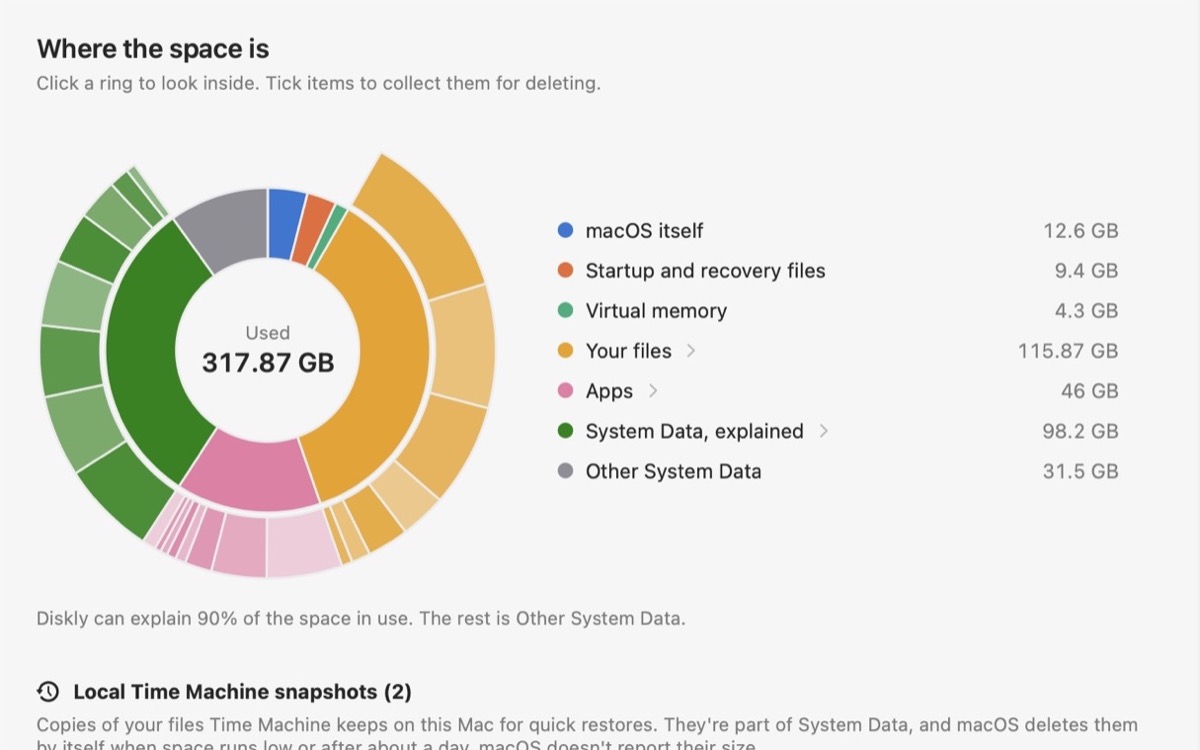
What is System Data on a Mac?
What fills that gray bar in Storage settings, what’s safe to remove, and what to leave alone.
-
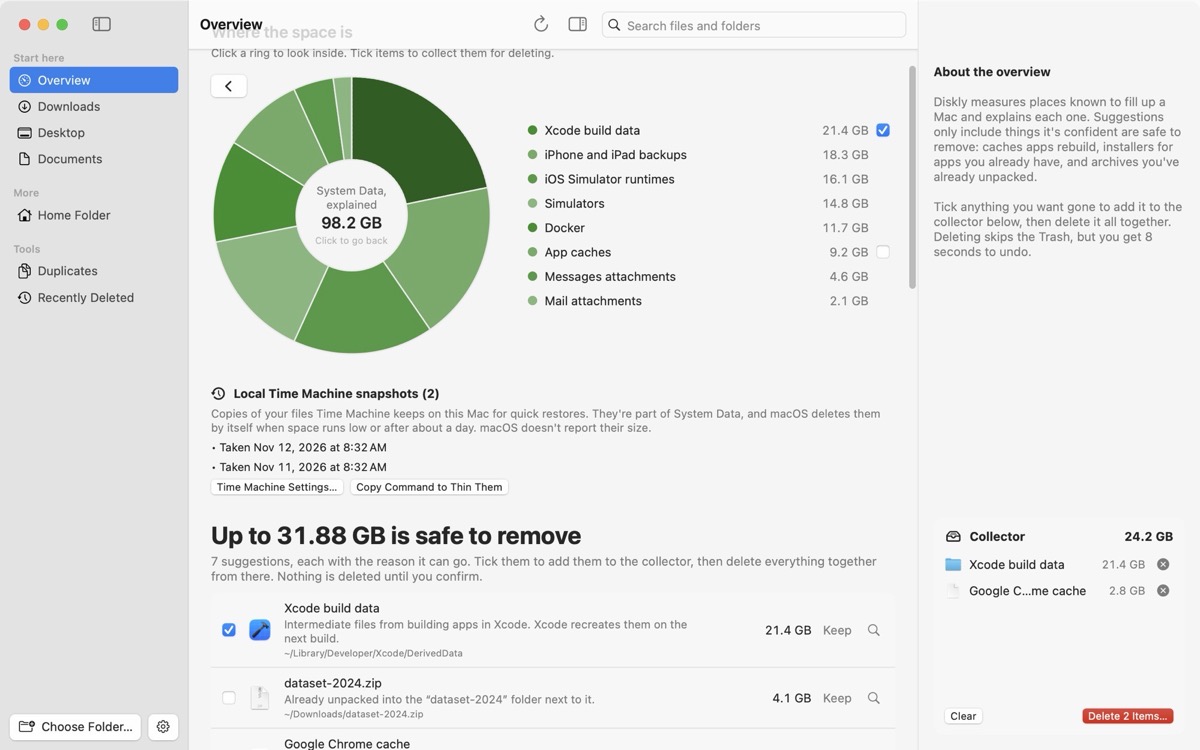
Mac storage full, but you can’t find what’s using it?
Your files don’t add up to what’s used. The places the space usually hides, checked in order.
-
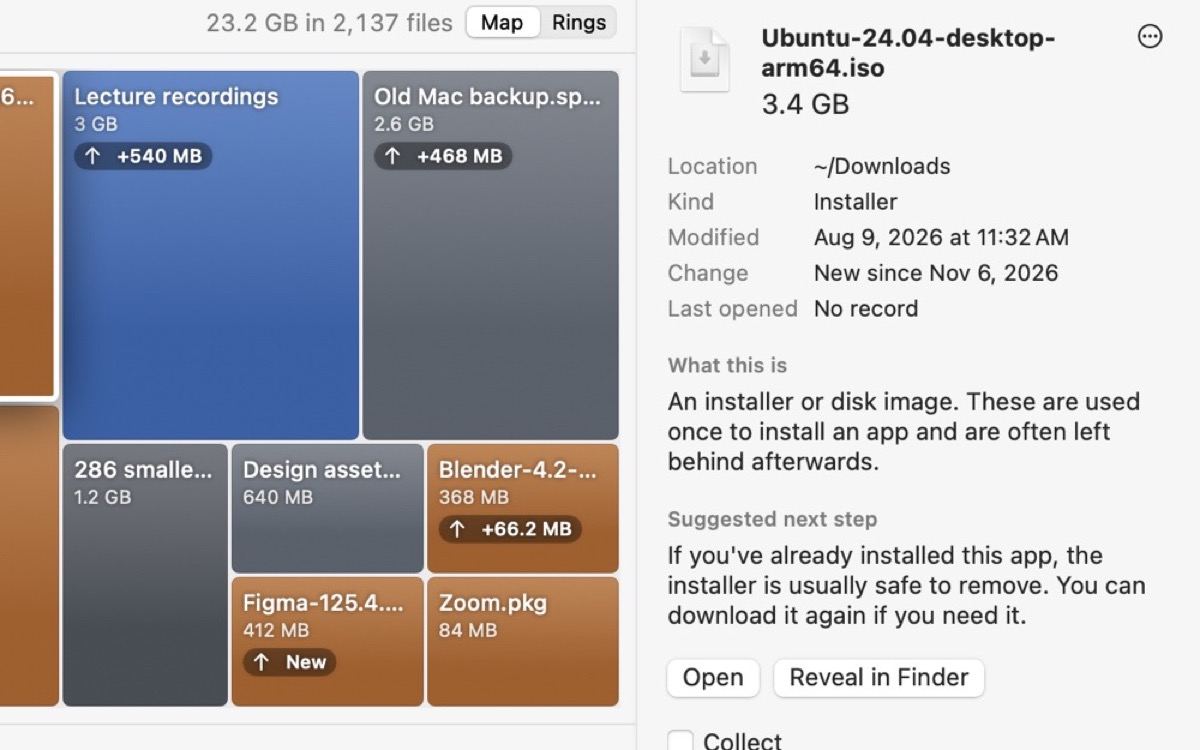
Can I delete .dmg files after installing?
When an installer can go, when to keep it, and how to find the old ones in Downloads.


